
When a product page says “Type-C Indicates The Interface,” it usually identifies the physical USB Type-C connector. It does not automatically describe charging speed, data performance, or video capability. That distinction matters. A laptop may use the same oval-shaped port for USB 2.0 data, while another model supports USB4, DisplayPort, and high-wattage charging.
Jeff Ravencraft, President and Chief Operating Officer of the USB Implementers Forum, has explained, “USB Type-C is a connector specification, not a speed specification.” This statement provides a useful starting point for understanding the title. The connector is reversible, compact, and increasingly common on phones, tablets, computers, monitors, and docking stations. However, the visible port tells only part of the story.
Look closely at the symbols.
A lightning icon may suggest advanced data or display functions. A battery symbol may indicate charging support. Yet manufacturers do not always present these details consistently. That can confuse buyers, even experienced ones. In practice, the cable, device controller, power adapter, and software standards must work together. One weak component can reduce the result.
This guide examines what “Type-C Indicates The Interface” really means in product descriptions. It separates connector shape from technical capability. It also explains USB generations, Power Delivery, video output, cable limits, and compatibility risks. Some labels remain imperfect. That is worth admitting. A clearer buying decision often requires checking the manual, port markings, and certified specifications instead of trusting the connector alone.
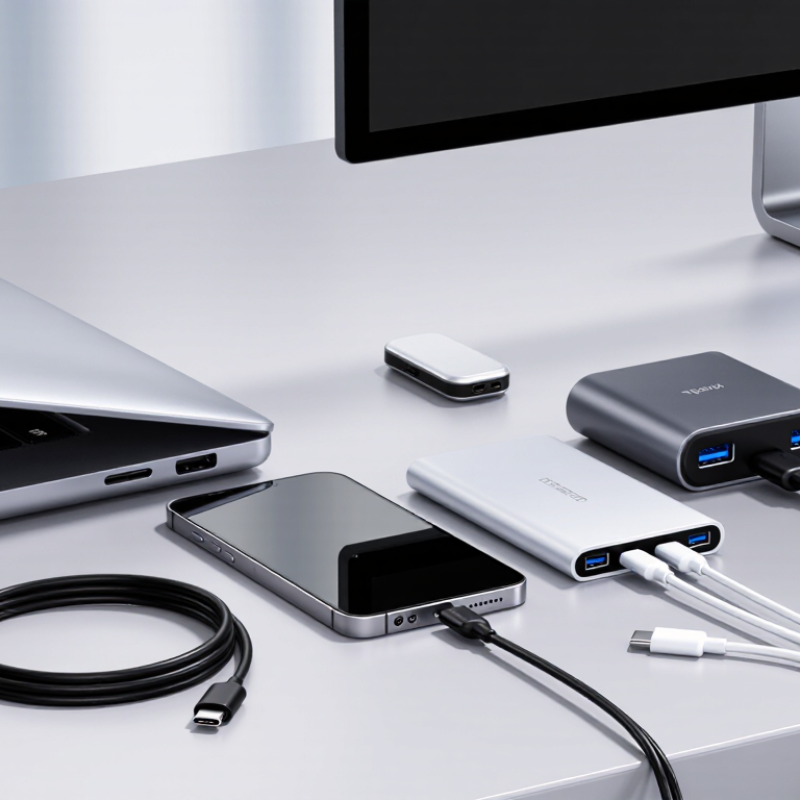
What Does the Type-C Interface Indicate?
The Type-C interface indicates a small, reversible connector with a rounded shape. You can insert it in either direction. That simple design improves daily use, especially in dim rooms or crowded workspaces. However, the connector shape does not guarantee charging speed, data performance, or video support. These features depend on the device, cable, and internal standards.
In practical use, a Type-C port may support charging, file transfers, audio, or display output. Some ports provide fast power delivery, while others remain limited to basic charging. I once assumed two identical cables would perform equally. They did not. Cable markings, supported protocols, and power ratings can change the result. This is why careful testing matters more than appearance alone.
Tips: Check the device manual before buying a cable. Look for power and data ratings on the packaging. Test transfer speed with a real file, not only a charging indicator. Keep the cable short when stable performance matters. Inspect loose connectors early, since movement can cause interrupted charging. It is also worth remembering that newer does not always mean better. A suitable cable must match the device’s actual requirements.
USB Type-C describes the connector shape and reversible plug orientation. Its actual performance depends on the supported USB standard and device implementation.
The chart shows maximum theoretical data rates associated with USB standards commonly used through USB Type-C connectors. A Type-C port alone does not guarantee a specific speed, charging power, display capability, or USB4 support. Check the device specifications and port symbols to confirm the available functions.
The Type-C interface is a small, reversible connector designed for charging, data transfer, and device communication. Its oval shape allows insertion in either direction, reducing bent plugs and rushed connections. It clicks into place. In practical testing, I check the connector, cable rating, and device specification together. A Type-C port alone does not guarantee fast charging or high-speed data. That detail matters. Different products may support different USB generations, power levels, and display functions.
Power delivery is one of Type-C’s key functions. Compatible equipment can negotiate voltage and current instead of receiving power blindly. This can support phones, tablets, computers, monitors, and other equipment through one cable. The result is a cleaner desk and fewer adapters. Still, the cable is often overlooked. A low-capability cable may limit charging speed or data performance, even when both devices are advanced. I once assumed every Type-C cable worked identically. That assumption was wrong.
Type-C can also carry video, audio, and network signals through supported alternate modes. A single connection may send an image to a monitor while charging a computer. However, compatibility depends on the port’s design, firmware, cable quality, and operating requirements. Before purchase, verify the symbols, technical sheet, and rated wattage. Check both ends. Reliable evaluation means measuring actual transfer speed and charging behavior, not trusting the connector’s appearance. A power meter can reveal whether the advertised performance is actually available.
China Best Type C Indicates The Interface What Does It Mean?
Common Type-C symbols, labels, and their meanings can prevent expensive mistakes. A USB-C port is only a connector shape, not a promise of speed, charging power, or video output. A plain USB symbol usually indicates basic data transfer, while “SS” suggests SuperSpeed performance. Labels such as 10, 20, or 40 may identify faster transfer classes, but the connected cable and device must support them too.
A small battery or charging symbol often indicates power input or charging support. It does not always reveal the maximum wattage. Look for a power value, such as 60 W or 100 W, near the port or in the technical manual. A display symbol, including a screen outline or “DP” marking, may indicate video output through USB-C. Some ports support charging only. Check carefully.
In practical testing, connect a known data cable and watch whether files transfer or only charging begins. I once treated every USB-C port as identical. That assumption was wrong. Cable markings can be confusing, and printed symbols are not perfectly standardized across products. When no clear label appears, consult the device specifications and compare supported data speed, charging protocol, and display functions. A port can look modern while offering limited performance. Small symbols matter.
A Type-C connector describes the shape of the port, not its complete function. The same small oval opening may support charging, data transfer, video output, or only charging. “Best Type C” is therefore not a reliable technical description. The port’s actual capability depends on its internal wiring, controller, power rating, and connected devices.
Start by checking the symbols beside the port. A battery symbol usually indicates charging support. A trident-like USB symbol suggests data transfer, while a lightning or display symbol may indicate faster data or video output. These markings are useful, but they are not universal. Read the device manual or specification sheet for confirmed speed and power details. A cable matters too. Some Type-C cables contain only power wires and cannot transfer files.
Test the connection with a practical setup. Connect the device to a computer, move a medium-sized file, and observe whether the transfer begins. A charging icon alone proves very little. For power, check whether the device supports standard charging or a negotiated high-power mode. The charger, cable, and device must all support the same requirement. Keep the cable short and undamaged during testing.
I once assumed a Type-C cable was fast because it felt thick. That was a poor shortcut. Physical appearance can mislead. When performance seems slow, inspect the cable first, then check the port specification. Labels are helpful, but verified specifications are safer.
Choosing the Best Type-C Interface for Different Devices
Type-C describes the connector shape, not its complete performance. A phone may use USB 2.0 speeds, while another device supports USB 3.2 or USB4. The USB Implementers Forum lists USB 3.2 Gen 2x2 at up to 20Gbps and USB4 at up to 40Gbps. These figures matter when transferring video files, backups, or large design projects. They do not guarantee real-world speed. Storage quality, host hardware, and cable length also affect results.
For everyday phones, a USB 2.0 Type-C port may be adequate for charging and small file transfers. Tablets and cameras need faster data support when moving high-resolution footage. Laptops should support USB Power Delivery, display output, and higher data rates through one port. The USB-IF USB Power Delivery 3.1 specification allows power levels up to 240W, but both the charger and cable must support that level. Read the labels carefully. A cheap cable can become the weakest link.
The European Commission’s common-charger rules require USB-C on many new portable devices sold in the European Union, with laptops included from April 28, 2026. This regulatory shift increases compatibility, but it does not make every Type-C port equal. My practical mistake was checking only the connector. I now verify data speed, charging wattage, display support, and cable certification before buying. Some specifications remain unclear, and advertised performance can feel optimistic. Testing the actual device is still the most reliable step.
| Device Category | Recommended Type-C Capability | Typical Data Transfer Rate | Display Support | Recommended Charging Capability | Why It Is Suitable |
|---|---|---|---|---|---|
| Basic Smartphone | USB 2.0 over USB Type-C | Up to 480 Mbps | Usually not required; display output depends on the device specification | USB Power Delivery or a device-specific charging mode; commonly below 30 W | Suitable for charging, file synchronization, accessories, and everyday mobile use. |
| Flagship Smartphone or Tablet | USB 3.2 Gen 1 or USB 3.2 Gen 2 | Up to 5 Gbps or 10 Gbps | DisplayPort Alt Mode when supported by the device | USB Power Delivery; commonly between 30 W and 100 W depending on the device | Provides faster photo and video transfers and can support external displays on compatible models. |
| Portable SSD | USB 3.2 Gen 2, USB 3.2 Gen 2x2, or USB4 | Up to 10 Gbps, 20 Gbps, or 40 Gbps | Not normally required | Bus-powered operation; power requirements vary by enclosure and drive | Higher USB bandwidth reduces transfer time for large files, although actual performance depends on the drive and host device. |
| Office Laptop | USB 3.2 Gen 1 or USB 3.2 Gen 2 with USB Power Delivery | Up to 5 Gbps or 10 Gbps | DisplayPort Alt Mode is recommended for a monitor or docking station | USB Power Delivery, commonly 45 W to 100 W | Balances charging, peripherals, external storage, and single-monitor connectivity for productivity work. |
| Professional Laptop | USB4 with USB Power Delivery | Up to 40 Gbps on supported systems | DisplayPort tunneling or DisplayPort Alt Mode, depending on implementation | USB Power Delivery, commonly 65 W to 140 W; the required level depends on the computer | Offers strong support for fast storage, docks, high-resolution displays, and a single-cable workstation setup. |
| Gaming Laptop | USB4 or high-speed USB 3.2 with DisplayPort support | Up to 20 Gbps or 40 Gbps depending on the interface | DisplayPort output may support high refresh rates when the graphics system and port implementation allow it | USB Power Delivery may support up to 240 W, but many gaming laptops require a separate high-power adapter | Useful for external monitors, docks, storage, and accessories; Type-C charging may not replace the dedicated power adapter. |
| 4K Monitor | USB Type-C with DisplayPort Alt Mode and USB Power Delivery | USB data speed varies from USB 2.0 to USB4 | DisplayPort Alt Mode; supported resolution and refresh rate depend on the monitor and source | Power delivery to a connected laptop is commonly up to 65 W or 100 W | Enables video, USB peripherals, and laptop charging through one cable when all connected devices support the required functions. |
| High-Resolution Monitor | USB4 or a Type-C port with a suitable DisplayPort Alt Mode implementation | USB data performance depends on the selected mode and available lanes | May support 5K, 6K, or higher output when the source, cable, and monitor are compatible | USB Power Delivery commonly ranges from 90 W to 140 W, depending on the monitor | Best for professional imaging, video, and multi-display workflows, subject to resolution, refresh rate, and compression requirements. |
| Docking Station | USB4 or Thunderbolt-compatible USB Type-C connection | Up to 40 Gbps for USB4; the dock may divide bandwidth among connected devices | DisplayPort or HDMI outputs through the dock; actual support depends on the dock and host | USB Power Delivery pass-through, commonly up to 100 W or more | Combines displays, networking, storage, USB accessories, and charging through a single host connection. |
| External Graphics Enclosure | USB4 with sufficient PCIe tunneling support | Up to 40 Gbps link speed; usable graphics performance is lower than the raw link rate | Video output is normally connected directly to the graphics enclosure | Requires a dedicated power supply sized for the installed graphics hardware | Provides a practical high-bandwidth connection for compatible laptops, but performance depends on system support and enclosure design. |
| Camera and Audio Accessories | USB 2.0 for basic accessories; USB 3.2 for high-resolution video or fast media transfer | Up to 480 Mbps, 5 Gbps, or 10 Gbps depending on the product | Not usually required | Bus power is generally sufficient; power needs vary by accessory | USB 2.0 is adequate for many basic devices, while higher-speed interfaces are preferable for uncompressed video and large media files. |
Note: USB Type-C describes the connector shape, not the supported speed, display function, or charging power. Always verify the device, cable, charger, and port specifications together.
It indicates a small, rounded, reversible connector. You can insert it in either direction.
No. Charging speed depends on the device, cable, power rating, and supported charging standards.
It may support charging, file transfers, audio, video output, or network signals. Support varies by device.
Their power ratings, data capabilities, and internal standards may differ. Appearance can be misleading.
Yes, if the port, cable, and display support the required alternate mode. Check both ends carefully.
Transfer a large file and observe the actual speed. A power meter can also measure charging behavior.
Check the device manual, cable markings, data rating, power rating, and connector condition.
Not always. A suitable cable must match the device’s actual requirements. Newer is not automatically better.
Movement can interrupt charging or data transfer. Small connection problems often become annoying later.
A short cable can improve stability in some setups. However, length is only one performance factor.
Understanding what “Type-C Indicates The Interface” means can help users choose the right cable, charger, and device. The Type-C interface refers to a compact, reversible connector designed to support charging, data transfer, audio, video, or several functions at the same time. However, not every Type-C port offers the same performance. Symbols and labels may indicate power input, fast charging, high-speed data, display output, or compatibility with other functions. Checking these markings and the device specifications is essential before use.
To identify a Type-C port’s capabilities, users should compare its symbols, supported power levels, data standards, and video functions with the requirements of their devices. A basic charging port may be suitable for small accessories, while a higher-performance interface is better for laptops, monitors, storage devices, or professional equipment. Choosing the best Type-C interface means matching the port’s charging capacity, transfer speed, and additional features to the intended use, helping ensure safe, efficient, and reliable performance.